
QR Code Photo Sharing for Street Photographers: A Simple Workflow
A practical QR workflow for street photographers who want people to scan, find their photos later, and download from a clean gallery path.
QR Photo Sharing
5 min read

Published June 17, 2026 | 4 min read
QR code photo sharing for events works best when the code opens one mobile-friendly gallery or delivery page. Guests can scan, view the event photos, and, when the workflow supports uploads, add their own images without installing an app; photographers still use a separate final delivery link for curated files.
Use Gampi to send polished client links for photos, videos, folders, archives, and galleries.
Event type | QR use case | Best next step |
|---|---|---|
Wedding | Guests open a gallery or upload area from printed cards | Use the wedding workflow |
Street activation | People scan a code to find their photos later | Use street photo galleries |
Corporate event | Attendees open one curated delivery page | Use a gallery or transfer link |
Private party | Guests access highlights from their phone | Share a mobile-friendly link |
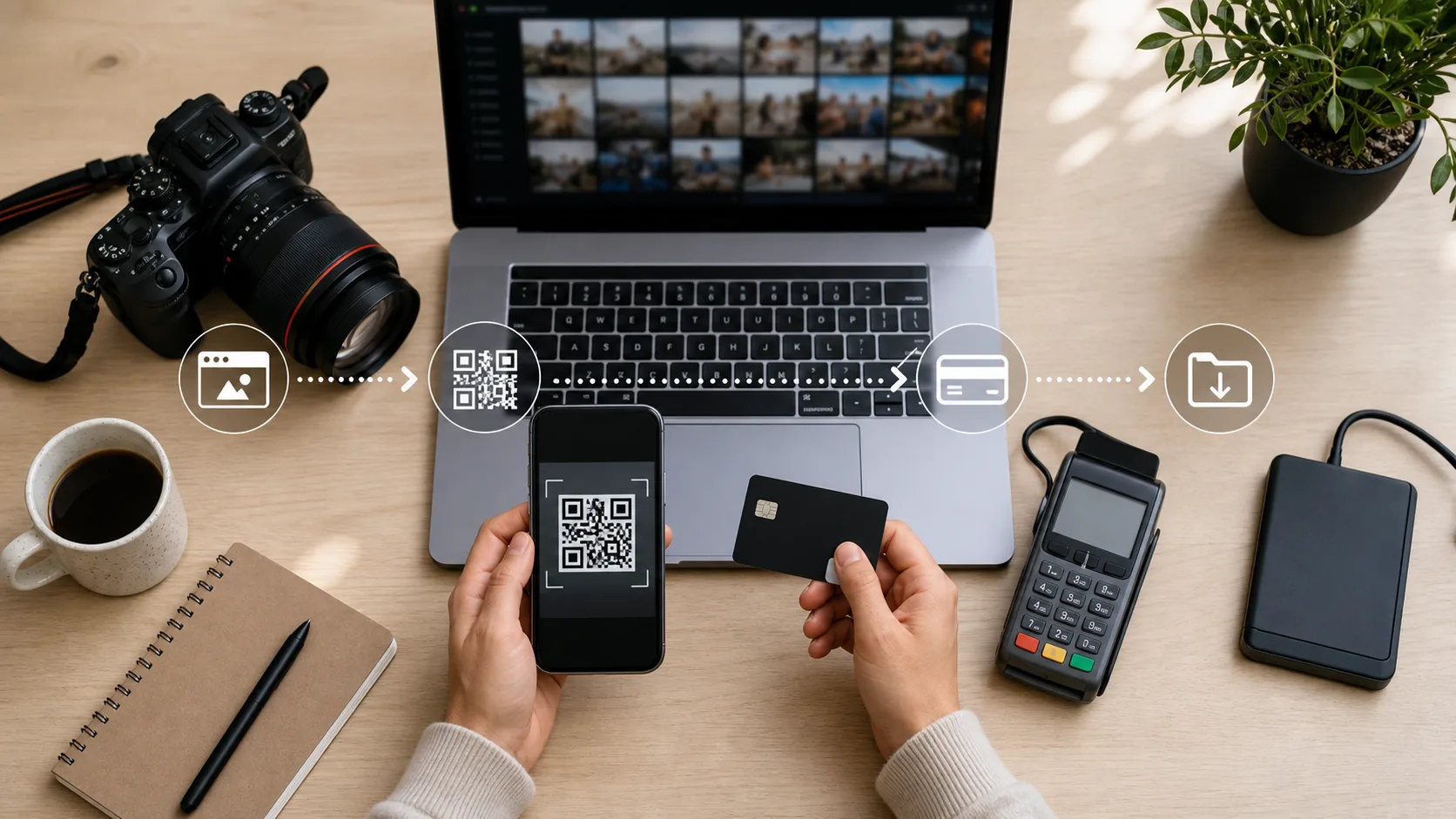 Links and QR codes make event and gallery access easier on mobile.
Only promise guest uploads for workflows that support them. If the page is view-only, say that clearly on the printed QR card and in follow-up messages.
 A QR code turns a short street interaction into a clear next step: scan now, find the gallery later.
After the event, use the QR link for discovery and a polished gallery or transfer link for curated final delivery.
For event QR links, keep the public scan page focused on discovery, use passwords or expiration for private galleries and paid downloads, and tell guests or clients exactly when final files will move to a separate delivery link.
For related workflows, read weddingPhotography, streetPhotography, deliver photos to clients, QR Code Wedding Photo Sharing for Guests: Simple Wedding Gallery Access, QR Code Photo Sharing for Street Photographers: A Simple Workflow, Temporary Download Links for Photographers: How to Share Photos With More Control before choosing the final delivery setup.
Create a mobile-friendly gallery or delivery page, turn the link into a QR code, test it, and print it where guests naturally pause.
Use guest upload only in workflows that support it, and explain limits clearly on the event material.
The strongest event workflow opens in the browser from a QR code or link, avoiding app installation friction.
Use entrances, table cards, bars, check-in areas, signage, and follow-up emails.
Choose a tool that combines mobile access, gallery delivery, guest expectations, and photographer-controlled sharing.
Create QR-friendly gallery paths for events, guest access, and controlled photo delivery after the scan.
A practical QR workflow for street photographers who want people to scan, find their photos later, and download from a clean gallery path.
A practical QR code wedding photo sharing workflow for signs, cards, wedding websites, guest access, privacy, and final gallery delivery.
A practical guide to faster photo delivery with client galleries, QR codes, links, and paid downloads.